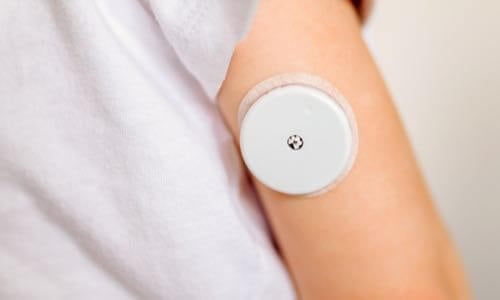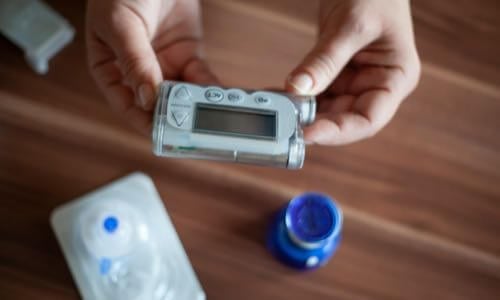
View current insulin pumps, smart pens and more from a variety of manufacturers. Compare features and technical specifications and find training resources, affordability information, prescription details and more.
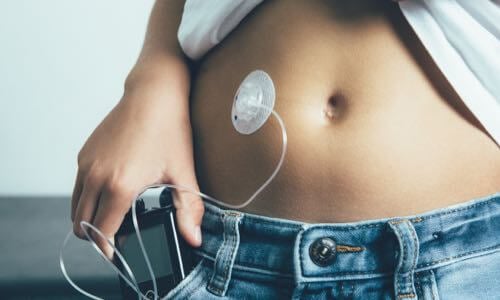
View features and specifications of popular infusion sets to determine the best option for your patients and clients.
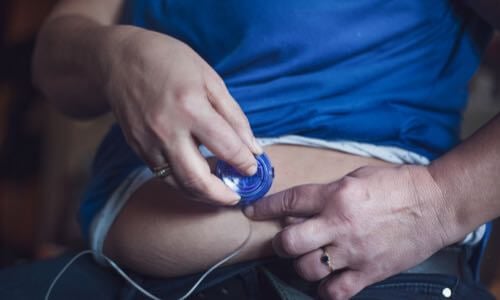
Open-source AID systems like Loop, AndroidAPS, and Trio combine pumps, CGMs, and smartphone apps to deliver customizable insulin automation. This section explains how they work, their unique features, safety considerations, and how clinicians can support patients using these evolving tools.
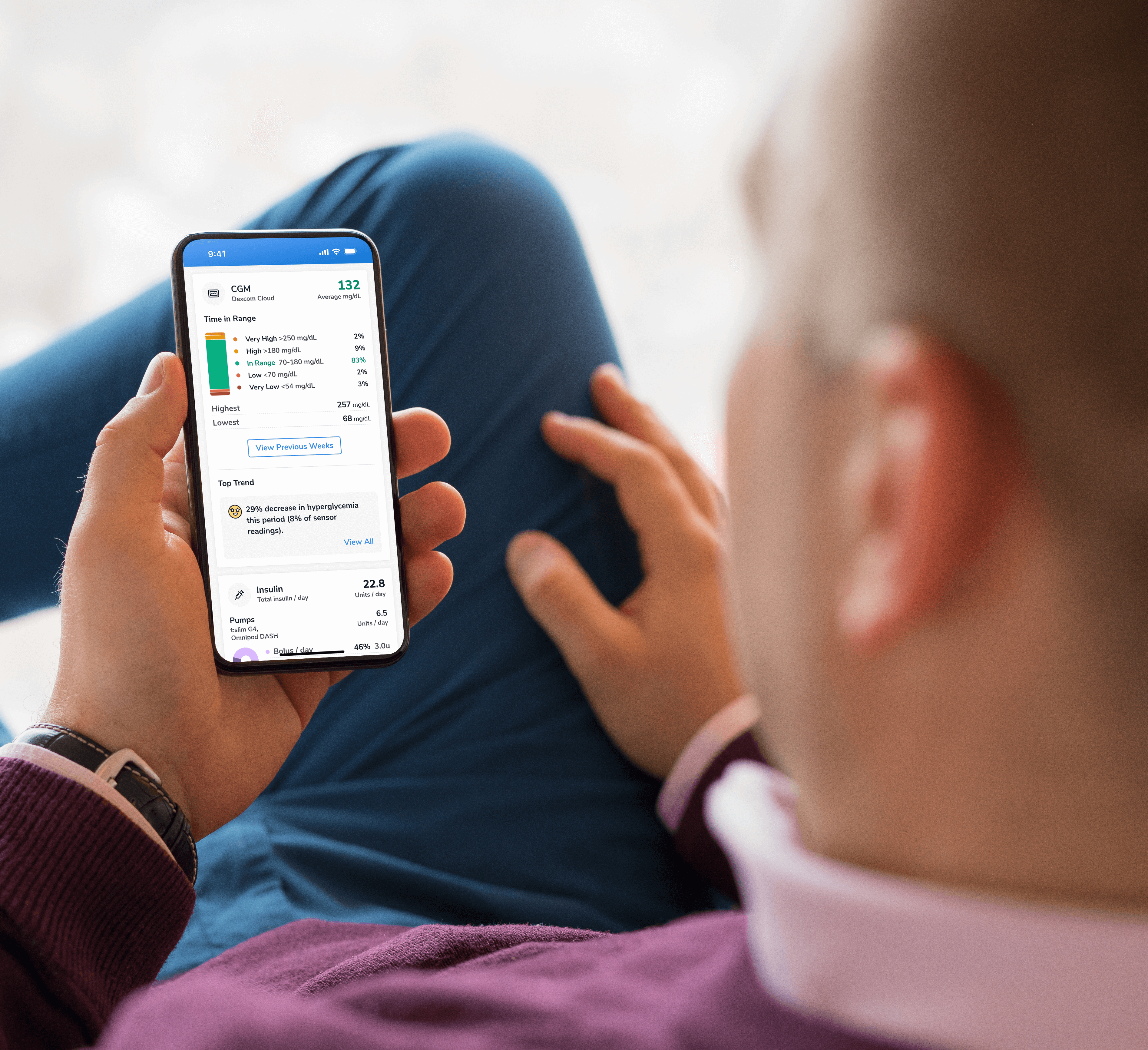
Find a sample of the latest online apps and digital platforms designed to prevent, manage and/or treat diabetes. We highlight apps and DTx for people with diabetes as well as the professionals treating them.
An overview of Glycemic Management Platforms that answers key questions including: What are they? What to consider? How can my inpatient facility benefit and more.
Are prior authorizations delaying patient care? Is your team overwhelmed by manual workflows? These platforms might help.
Find diabetes certificate programs, online learning opportunities, webinars, device training, practical tools and more. All resources are developed for diabetes healthcare professionals by diabetes healthcare professionals.

Find a variety of podcasts and videos focused on the latest topics in diabetes technology specifically created for diabetes healthcare professionals.
Danatech device trainings introduce healthcare professionals to the latest diabetes technology including the newest CGMs, automated insulin delivery devices, smart pens and more. Trainings include overviews, training specifics, FAQs and more.

The danatech Tool & Resource Directory gathers every clinician tool in one place, from product comparisons and affordability finders to point-of-care PANTHER forms and step-by-step workflows for CGM and AID. Users can filter by focus area and role to find what fits their practice.
Diabetes Technology Conference
The only event designed by and for the care team focused on using technology in practice to improve outcomes for people with diabetes.
Bring Our Curriculum to Your Students
Prepare future healthcare providers for modern diabetes care with danatech’s practical curriculum on CGM, insulin delivery, AID, and patient-centered communication.
Several automated insulin delivery (AID) manufacturers offer free digital demos that let clinicians and people with diabetes explore selected screens and workflows without connecting to a working insulin pump. Learn more.
Help tackle cardiovascular issues by equipping yourself with the knowledge to reduce cardiometabolic risk and combat the development of cardiometabolic diseases with specialized education and resources from danatech.
Whether you’re a healthcare professional seeking to enhance your expertise or someone passionate about making a significant impact in the lives of those affected by diabetes, this guide will help you navigate the path to becoming a CDCES.

Get a plain-language read on where the diabetes tech field is heading, why it matters for the people you support and the specific technology we're tracking
Recent diabetes technology innovations, product launches and enhancements as well as clinical perspectives regarding diabetes care.

Make your voice heard on Capitol Hill by sending messages to your members of Congress on critical issues that affect diabetes care and education. You can also track federal diabetes legislation to see which members have signed on to support the bill and whether there have been any relevant votes.
-(1).png?sfvrsn=799e9a59_1)
Continuous glucose monitor (CGM) alert concerns often surface during routine diabetes care. Sometimes the alert sounds too often, sometimes it never reaches the person and sometimes it reaches them but they can't act on it. Each has a potentially different fix or adjustment. This guide is a decision process for accurately sorting each out.
Rather than jump to a specific tip, this guide starts with the reason the alert is failing: confirm it's actually reaching the person, sort the mechanism, then match a first step. Sorting by cause makes it easier to choose a potential fix.
Start with the CGM's approved alert settings, accessibility options, compatible devices and sharing features. Some additional approaches, such as placing a vibrating phone in a hard container or connecting alerts to third-party accessories, are user-developed workarounds that have not been validated by the CGM manufacturer. They should supplement, not replace, the primary CGM alert. Confirm the approach doesn't interfere with required alerts, review current manufacturer instructions and individualize the plan.
Where an alert can break down
Amplifying a notification that never fired does nothing. Check the CGM app, connectivity, notification permissions, sound and volume settings, compatible phone/OS, battery optimization, watch routing and any signal-loss messages. If the alert is arriving but isn't working for the person, sort it below.
If alerts are frequent because clinically important highs or lows are recurring, review the underlying treatment plan (overnight hypoglycemia, post-meal highs, insulin timing, overtreatment or compression lows) rather than simply reducing notifications.
Begin with the CGM's approved settings and existing devices, then add hardware when the person's access needs or sleep pattern call for it. Test each setup with the person rather than assuming it works.
Approved features and no-cost changes. Verify behavior on the person's specific device.
Review which alerts are firing, whether they're actionable and how often they repeat. Consider adjusting optional high alerts, rise-rate alerts, repeat intervals or first-alert delays when the device permits.
Be more cautious changing low or predictive-low alerts, especially with impaired hypoglycemia awareness, recurrent severe hypoglycemia, pregnancy or limited ability to respond. Alert names, thresholds and sound behavior vary by CGM; for example, Dexcom G7 includes a required Urgent Low Alert at 55 mg/dL, but verify the person's specific device, app and phone settings before changing anything.
If the person has grown accustomed to a recurring alert sound, switching to a distinctly different available tone may help some people notice it again. Confirm which sounds can be changed on the specific CGM and phone. Not every system allows every tone to be changed.
On supported iPhones, Critical Alerts may allow an authorized CGM app to deliver selected alerts through mute or Focus settings. Some Android CGM apps offer a Do-Not-Disturb override or high-priority notification setting, but behavior varies by CGM, phone model, OS and app permissions. Test the setup with the person rather than assuming it works.
A modest purchase. Some manufacturer-supported, some user-developed. Maintain the CGM's standard alert pathway.
Bed-shaker alarm systems provide a non-audio waking cue and may help people who are Deaf, hard of hearing or difficult to wake. Connecting one to CGM notifications may require third-party hardware or automation that hasn't been validated by the CGM manufacturer. Confirm compatibility and keep the CGM's standard alert pathway intact.
Manufacturer-supported receiver or compatible display: when available, an approved receiver may add a second display and alert pathway; check whether the CGM allows simultaneous phone-and-receiver use. Unofficial secondary display: community-built or third-party displays may show glucose in large digits across a room, but compatibility, alert behavior, data delay, privacy and regulatory status vary. Don't use one as the sole source for treatment decisions or urgent alerts.
Route an additional cue to another device or support person, as a supplement, never a replacement.
Use remote monitoring as an additional support pathway when the person may not reliably notice or respond to alerts. Clarify who receives alerts, which alerts they receive, what response is expected and what to do if data are delayed or unavailable. Remote monitoring should not replace the person's primary CGM display, individualized safety plan or emergency response plan. LibreLinkUp and Dexcom Follow are designed to assist designated people, not to serve as a primary monitor.
A compatible smartwatch can provide a wrist-based visual and haptic cue for people who miss phone sounds, particularly during waking hours. It may help some sleepers but shouldn't be assumed to awaken a person reliably. Confirm whether the watch mirrors the phone or connects directly to the CGM, what distance and connectivity are required and how urgent alerts behave.
Access needs are not one audience, and a single catch-all approach underserves all of them. Match the alert pathway to the specific need, and don't assume the default audio path works.
For low vision, consider high-contrast or large-format displays when usable. For blindness, prioritize reliable audio, screen-reader access, tactile or haptic cues and accessible treatment supplies. Verify the person's actual CGM app and workflow with VoiceOver or TalkBack rather than assuming compatibility.
Don't rely on audio as the primary path. Some people may benefit from amplification or a different frequency, but build the plan around haptics (watch, bed shaker) and visual cues. Verify the person can tell an urgent alert from a routine notification by feel or sight alone.
The bottleneck is responding, not hearing. Pre-stage fast-acting carbs within reach and simplify the steps to silence and act. Consider remote monitoring as an additional way for a support person to recognize a possible problem, and separately establish how the person will request help (voice calling, an accessible emergency button or another individualized method).
Keep alerts limited to those the person and support team can understand and act on, without disabling clinically important safety alerts. Use consistent wording, an explicit response plan and additional caregiver monitoring when appropriate.
"Tell me about the last alert you missed, or one that fired when you didn't need it."
Is the alert being generated and delivered (app, connectivity, permissions, volume, OS)?
Tune, troubleshoot, amplify or add response support?
"This isn't a manufacturer-validated feature. Some find it a helpful extra cue, but it shouldn't replace your regular alert. Let's make sure it doesn't interfere and decide how you'll know it's working."
Alert settings and response plans often need to be revisited. Note what changed and recheck.
Contact manufacturer technical support for repeated signal loss, missing alerts despite correct settings, app failures, sensor errors or compatibility problems.
Address recurrent or severe hypoglycemia, loss of consciousness, inability to self-treat or unsafe overnight patterns through the person's clinical and emergency plan, not solely through louder alerts.
Alert names, required settings, thresholds, sound behavior, OS support and hardware compatibility change often and differ by CGM. Verify device-specific details against the manufacturer's current instructions for use before recommending and treat dated product mentions as starting points, not endorsements. This content is educational and does not constitute medical advice. Always individualize to the person's clinical needs.
More on continuous glucose monitor (CGM) alerts, selection and day-to-day use, for the care team and the people they support.
User-developed workarounds supplement, never replace, the device's validated alert, individualized safety plan and emergency response plan. This content is educational and does not constitute medical advice. Always individualize to the person's clinical needs and defer to the manufacturer's current instructions for use.
DISCLAIMERS:
This site and its services do not constitute the practice of medical advice, diagnosis or treatment. Always talk to your diabetes care and education specialist or health care provider for diagnosis and treatment, including your specific medical needs. If you have or suspect that you have a medical problem or condition, please contact a qualified health care professional immediately. To find a diabetes care and education specialist near you, visit the ADCES finder tool.
ADCES and danatech curate product specifics and periodically review them for accuracy and relevance. As a result, the information may or may not be the most recent. We recommend visiting the manufacturer's website for the latest details if you have any questions.



.png?sfvrsn=ff189f59_2)
danatech, powered by ADCES, helps the whole care team choose, start, use and support diabetes technology with confidence.